
Badgy 200 Review
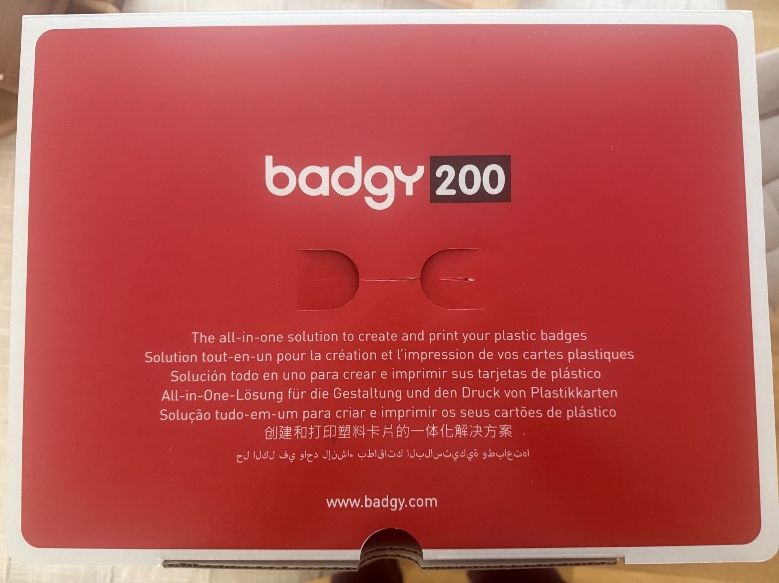
Extreme, polarised reviews — that’s the first thing I noticed when reading about the Badgy 200 printer. People loved it or hated it, with nothing in between. This entry-priced PVC card printer sets out to satisfy the demand from small-volume users for a wallet-friendly, small-run solution — but does it live up to expectations?
Numerous requests from JBadge users have arrived in my inbox asking if the Badgy 100 and Badgy 200 could be used with JBadge. The standing position for pairing printers with JBadge is, broadly speaking: if it shows in your Windows list of printers, we can print to it. But as I explored the questions further, I found users wanted to know should I use a Badgy printer, rather than can I use one.
With those two questions in mind, I decided to order one and find out.
The Badgy 100 or the Badgy 200
What you get with both:
- Power supply
- Printer
- Single-side printing
- 100 CR80 PVC cards
- Colour print ribbon
- Desktop software and driver
- 2-year warranty
The differences:
| Badgy 100 | Badgy 200 | |
|---|---|---|
| Print area | 1.35 mm margin | Edge-to-edge |
| Speed per card | 45 seconds | 38 seconds |
| Price (AUD) | $1,097 | $1,299 |
For the two-hundred-Australian-dollar difference, I went with the Badgy 200. I consider the speed delta of seven seconds insignificant at low volumes, but edge-to-edge printing is not optional in my mind.
Ordering, receiving and unboxing
I ordered through a large office-supplies company and the next day I was greeted by a very friendly delivery man who politely waited around to take my photo for proof of delivery before literally running away. I know I’m not the most photogenic guy in the world, but was it really that bad?
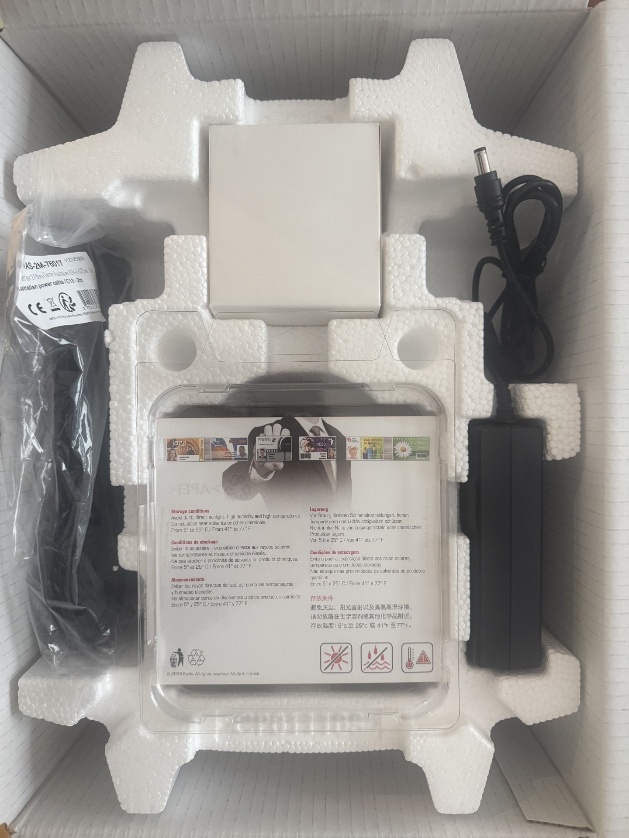
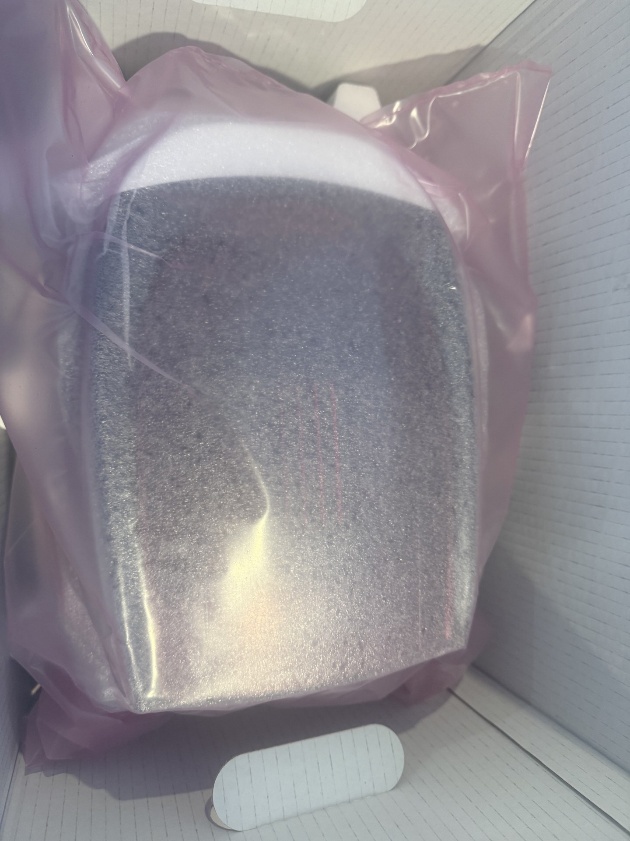
The packaging is pretty, clearly designed to sit on a shelf and say “Look at me.” The unboxing was uneventful: everything was well protected, clean and orderly. Having worked with many other printers, I was pleasantly surprised — the Badgy 200 is conveniently small when contrasted with the likes of a Magicard or Fargo printer. Shoebox-sized is probably an indicative yardstick.
Setting up
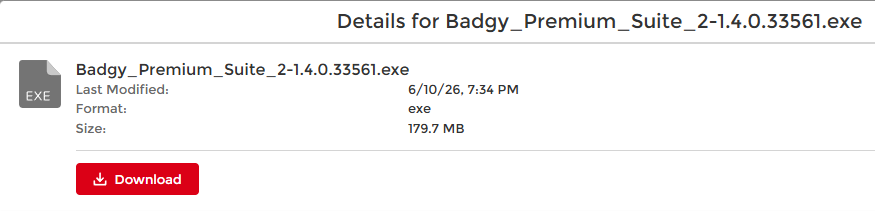
At this point I noticed my first point of friction. There was no clear Start Here guide — just a QR code to the Badgy website. Once on the site, there was nothing to take me through where to start, but eventually I found the option to download the Windows installer.
After running the installer, it launched their design editor and left me to it. This review is focused on the printer, not the design suite, but let’s just say there’s a reason people with these printers choose to use JBadge. I tried a premade template, gave it some values, pressed print and… nothing. The installer kindly installed the design suite but no print driver — at this point my face and my palm were well acquainted.
Armed with the power of a web search, I went off and located the driver directly from the printer manufacturer, Evolis. Frustratingly, it also included a design suite you couldn’t opt out of, but at least I had the driver to install — and that process was guided and helpful, from installing the driver to loading the blank cards. A+.
With the driver installed and blanks loaded, I returned to JBadge and chose the Badgy 200 as my paired agent’s printer. I didn’t change any agent settings or any printer driver setting — all default.
The printed results
The TLDR
All 10 prints came out beautifully, at a standard most users would find acceptable. The dark template was a little washed out, but with some adjustment to the template, the results were good.
The details
The print resolution on a Badgy 200 is 300 dpi, so you’re not gaining the full 600 dpi print quality offered by JBadge. The finish was consistent with no patchiness — a complaint made by other reviews, though I can’t help wondering if that complaint may be attributed to people touching the surface of their cards before printing, something printer manufacturers don’t do a good job of warning about. This printer is single-sided, with no option to expand to two sides.
If you’re printing a batch, be ready for some noise. At 38 seconds per print, you could be printing for some time, so plan your run for when you’re not on the phone.
Both portrait and landscape templates oriented automatically and without error, regardless of single or batch printing. The portrait template had a very dark navy background with a subtle transition to a lighter background around the photo; the first few attempts caused the entire print to look darker and slightly washed out, but after lightening the background in the JBadge template editor, the result was stunning.
Summary
Should you use a Badgy 200 with JBadge? If you have one — yes. Operationally it’s compatible, the quality is more than acceptable, and you have nothing to lose. If you’re on a tight budget and looking for a cheap way to get started, Badgy on JBadge offers an affordable solution with many conveniences.
My results are anecdotal and don’t guarantee yours will be the same — but for the price, I’d argue it’s worth the risk.