
JBadge Agent 1.0.17.0 — Card Rotation
The newest JBadge Agent update adds Card Rotation — a small setting that fixes a very common annoyance: a badge coming out the printer turned the wrong way.
The problem it solves
Card printers feed cards in a fixed direction, so a landscape design can sometimes print sideways — “across” the card. On many card printers, changing the Windows driver’s own portrait/landscape setting has no effect at all. Card Rotation is the fix, and it lives right where you print.
Where to find it
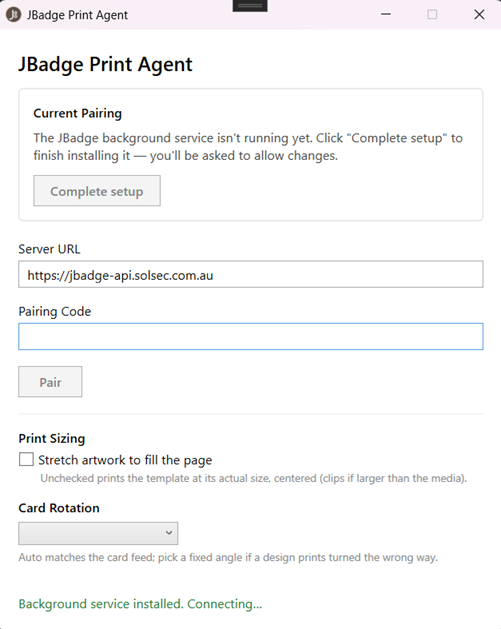
Open the JBadge Agent window and look just below Print Sizing — there’s a new Card Rotation dropdown. Like Print Sizing, your choice takes effect on the next print job; there’s no need to restart the agent.
Your options
- Auto (default) — match the card. The agent detects whether your design is landscape or portrait and turns it to suit how the printer feeds the card. This handles the common case on its own. Leave it on Auto unless a badge comes out turned the wrong way.
- None (0°) — never rotate. Print exactly as designed.
- 90° / 180° / 270° — always rotate by that amount. Reach for one of these only if Auto turns a design the wrong way — e.g. if a landscape badge prints upside-down, choose 270° (or 180° to flip it end-for-end).
Seeing it in your workspace
Each agent’s current choice now shows in the Print Agents grid as a read-only Rotation column, so an admin can see at a glance how every paired agent is set. The setting itself is always edited in the agent’s tray — the grid is a mirror.
Getting the update
The agent updates itself — you’ll pick up Card Rotation automatically the next time it updates. To grab it now, install the latest agent from the download link on the print-agent setup page.